 Transfer selectively. No overwritting. Fast & Easy.
What Happened to Android File Transfer? 5 Best Alternatives

You know the status between Android and Mac has always been complicated. And even with the Android File Transfer for Mac, Google today leaves macOS users with the error screen. So, would you start emailing your 2GB video files or perhaps buy an iPhone? Fortunately, this guide helps you move on from the ghost of Google, giving you the 5 best Android File Transfer for macOS that work! Come on and select which one actually integrates into your Mac's native system.
Guide List
What Happened to Android File Transfer? 5 Android File Transfer Methods for Mac How to Transfer Files from Android to Mac FAQsWhat Happened to Android File Transfer?
Why does Google leave you with the 'Could not connect to device' screen? This is just one of the issues you can face with the Android File Transfer. For more than a decade, the Android File Transfer app was the default bridge between Android's Media Transfer Protocol and macOS. While it wasn't fancy, it can help you transfer files to Mac. Then, without a warning, Google leaves it hanging.
The official download link was gone from the Android website, the support pages disappeared into thin air, and the project was fully abandoned. Since it has not been updated in years, it has no native support for modern Apple Silicon chips and completely crumbles on newer macOS versions.
Here are some of the common errors you can find on the old Android File Transfer app:
- • Could not connect to device. The classic error is when you unlock your phone, plug it in, and the app immediately shuts you down before reading your files.
- • No Android device found. The app looks and pretends nothing is there, even when your phone is charging from your MacBook's port.
- • Can't access device storage. After tapping the File Transfer on your Android, the Mac app refuses to open the gates.
- • The app opens, but has an empty folder. Once the app launches smoothly, you're greeted with a depressing blank space.
5 Android File Transfer Methods for Mac
Now that the official Android File Transfer for Mac has been discontinued, it's time to look forward to the best alternatives available. You don't have to tolerate those connection errors anymore with these top five Android File Transfer (AFT) for Mac alternatives.
1. AnyRec PhoneMover
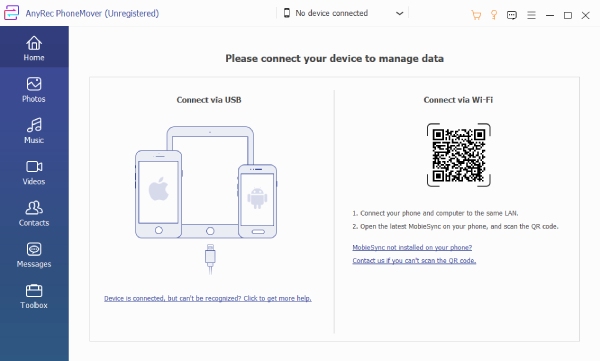
This powerhouse data management tool, named AnyRec PhoneMover, makes the transition between Android and Mac completely seamless. It is a complete, direct Android File Transfer for Mac alternative bridge that covers everything, from high-res photos to entire backups over a stable USB connection. It even throws in organization tools that allow you to view, add, delete, or de-duplicate data right from your Mac screen.
Best For: Creators who need an all-in-one desktop manager to transfer, backup, and clean up their phone files.
- Pros
- Organized visual interface to easily manage data.
- Built tools to create ringtones and convert photos.
- Ultra-fast and secure batch transfers.
- Cons
- Paid license for full features.
Secure Download
2. OpenMTP
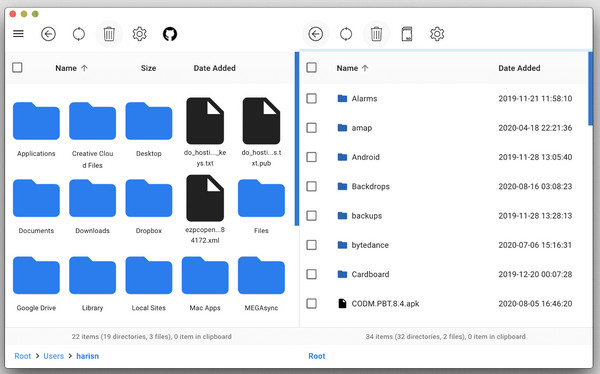
Loving the original Google Android File Transfer on Mac? Then OpenMTP is the exact alternative you need. This free, open-source tool brings the classic layout to your Mac, showing your files on one side and your Android files on the other. You can drag and drop files over without the progress bar randomly freezing halfway through.
Best For: Tech users who wish for a free, fast, and traditional drag-and-drop file explorer on Mac.
- Pros
- Is free, open source, and ad-free for life.
- Offers 6x faster transfer speed.
- Handles bulk folders flawlessly.
- Cons
- Its dual-pane can feel a bit technical for casual users.
- Needs advanced legacy modes depending on your Android brand.
3. LocalSend
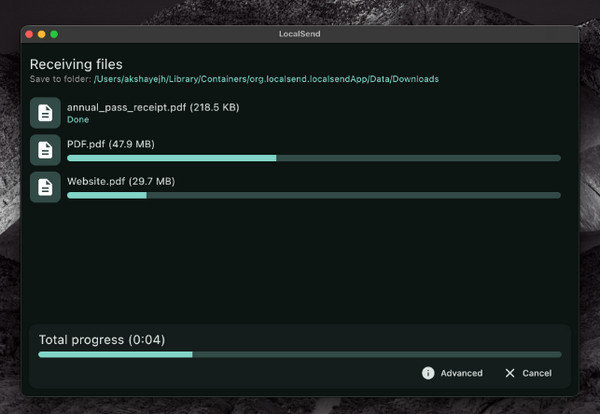
Next is this brilliant open-source tool that brings the AirDrop magic, the LocalSend app. This Android File Transfer for Mac alternative allows your Mac and Android device to find each other quickly without any pairing headaches. Your files, e.g., a quick screenshot, a PDF, or a photo album, will travel directly between devices without going through an external cloud server.
Best For: Users who look for a fast and completely wireless AirDrop-like experience.
- Pros
- Works entirely offline over local Wi-Fi.
- Cross-platform compatibility for Mac, Android, iOS, and Windows.
- Modern user interface without accounts.
- Cons
- Speeds rely on your local router's wireless strength, making it slower.
4. Google Drive
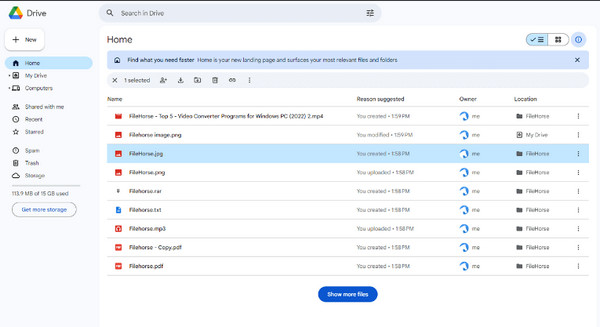
For those times when the two devices are not even in the same room, using Google Drive or similar cloud storage platforms is a foolproof Android File Transfer Mac alternative. This method involves uploading your Android files directly to the cloud, then instantly getting them in your Mac's web browser.
Best For: Casual transfers of smaller files, syncing, and those who want to back up Android to Google Drive automatically.
- Pros
- No setup needed since Android users use a Google account.
- Files can be accessed from any device as long as there is an internet connection.
- Cons
- Free cloud tiers have storage limits.
- Strongly reliant on your internet upload and speed, which can be slow for 4K videos.
5. Android Debug Bridge
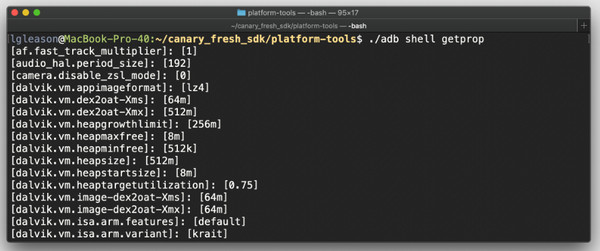
Perhaps you're the type of user who wishes for absolute command of your files. For this, Android Debug Bridge is the standard. ADB is a command-line type of Android File Transfer Mac alternative that creates a direct communication channel between macOS and your Android OS. While it lacks a friendly interface, it gives you raw access to your device's file structure.
Best For: Works well if you are an advanced user who prefers using Terminal for device access.
- Pros
- Unmatched connection that avoids standard glitches.
- Is fully free and built directly into the Android developer ecosystem.
- Targets deeply buried system files.
- Cons
- Steep learning curve since it needs typing text commands.
- A wrong command can disrupt your phone's system files.
How to Transfer Files from Android to Mac
After the Android File Transfer for Mac alternatives out there, for the most headache-free experience, here's how to use AnyRec PhoneMover to transfer photos from Android to your computer, as well as videos, music, and other files.
Secure Download
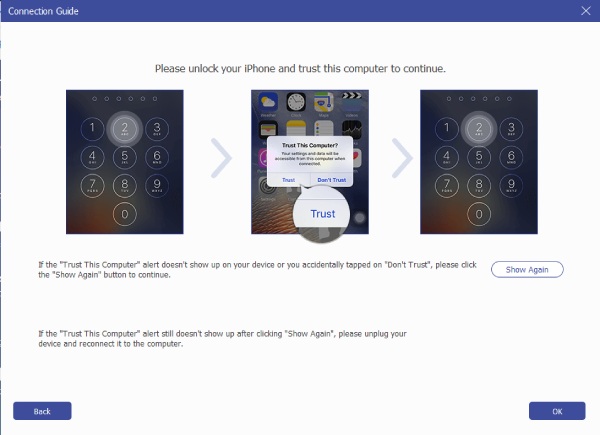
Step 1.After launching AnyRec PhoneMover on your Mac, link your Android phone via a USB cable. Keep an eye on your phone's screen as you'll need to grant the necessary permissions when prompted.
Step 2.Look at the app's sidebar, and click on any category you want to transfer, whether that's your Photos, Music, or Videos. From there, cherry-pick individual files or select everything at once. You can preview each file before selecting it.
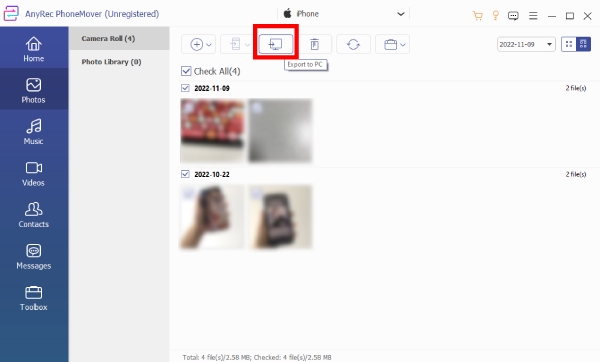
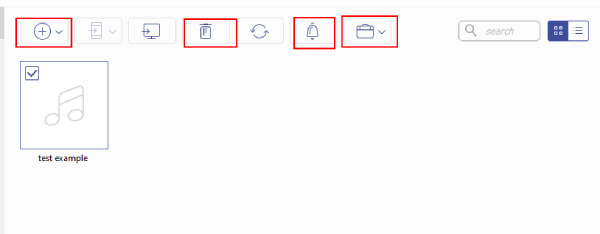
Step 3.Simply click the "Export to PC" button at the top to begin. Once your files are safe, you can use the built-in management tools to keep your digital life clutter-free.
FAQs
-
Can I still use the original Android File Transfer app?
Yes, if you already have it installed. But since Google abandoned it, it has no code needed to run smoothly on modern macOS versions and Apple Silicon chips.
-
What's the fastest wireless way to transfer files between Android and Mac?
For an AirDrop-like experience, use LocalSend. This app sends files over your local Wi-Fi network at fast speeds without relying so much on your internet bandwidth.
-
Why does my Mac not recognize my Android phone?
Maybe your phone defaults to Charging Only mode when plugged in. Once you connect the cable, swipe down your phone's notification shade, then tap the USB settings and switch the mode to File Transfer or MTP.
Conclusion
At the end of the day, Google killing off the official Android File Transfer app is a blessing in disguise. You can have so many Android File Transfer for Mac alternatives that offer less time fighting with your devices and more time to get things done. Make sure to give the AnyRec PhoneMover a shot for the smoothest way to transfer files! It does far more than just replace the old app; it upgrades your entire workflow with a beautiful interface, lightning-fast transfers, and smart management tools that make managing files on a Mac effortless.
Secure Download
Related Articles:
About Our Author